mirror of
https://github.com/jmcnamara/libxlsxwriter.git
synced 2026-10-23 08:07:32 -06:00
[GH-ISSUE #270] How-to: Build libxlsxwriter inside Qt-Creator for Windows #216
Labels
No labels
awaiting user feedback
bug
cmake
cmake
docs
feature request
in progress
long term
medium term
medium term
pull-request
question
question
ready to close
short term
under investigation
wontfix
No milestone
No project
No assignees
1 participant

Notifications
Due date
No due date set.
Dependencies
No dependencies set
Reference
github-starred/libxlsxwriter#216
Loading…
Reference in a new issue
No description provided.
Delete branch "%!s()"
Deleting a branch is permanent. Although the deleted branch may continue to exist for a short time before it actually gets removed, it CANNOT be undone in most cases. Continue?
Originally created by @petricf on GitHub (Jan 21, 2020).
Original GitHub issue: https://github.com/jmcnamara/libxlsxwriter/issues/270
Originally assigned to: @jmcnamara on GitHub.
This guide is dated January 21st, 2020.
Assumptions:
Prerequisites:
Procedure:
Unpack the sources (zlib and libxlsxwriter) to C:\Projects.
Start Qt-Creator
Create a session for zlib (Menu: File -> Sessions -> Manage ...) and open it
Open C:\Projects\zlib-1-2-11\CMakeLists.txt (Menu: File -> Open File or Project). This dialog will appear: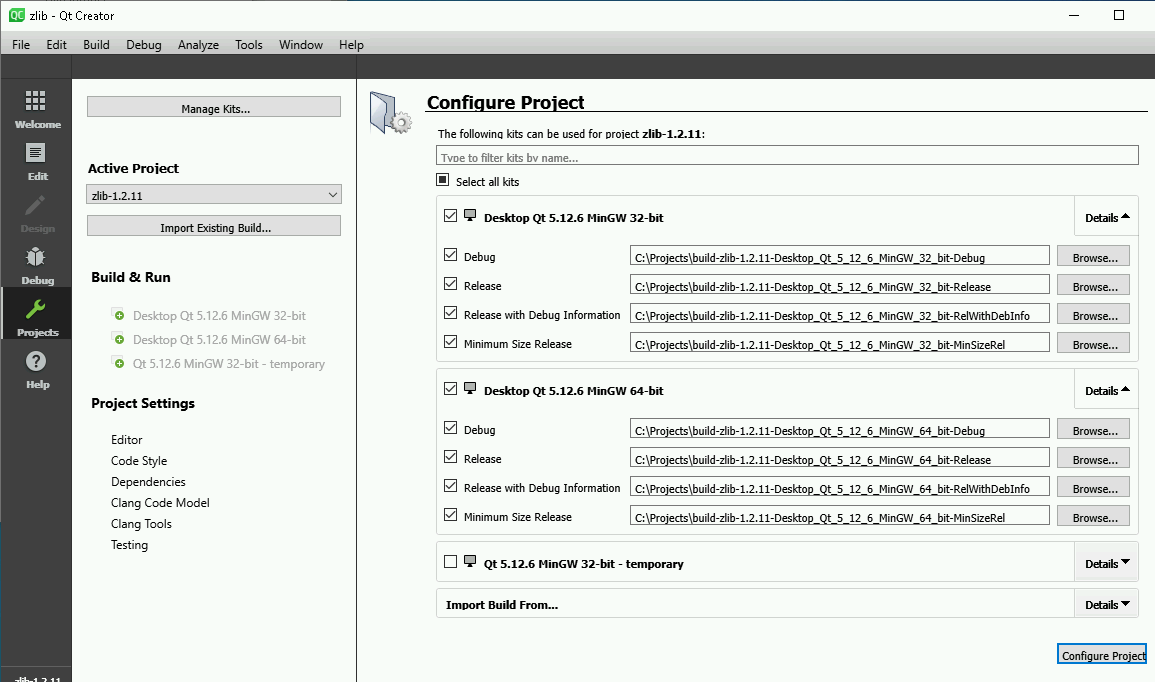
Select both compilers (MinGW 32-bit and 64-bit) and press "Configure Project"
At the left navigation bar select "Projects"
Change "Edit build configuration to "Release" and adjust the install paths of the 32-bit settings to C:\Qt\Tools\zlib32... : Don't forget to press "Apply Configuration Changes".
Configure Run settings and add deployment step for 32-bit: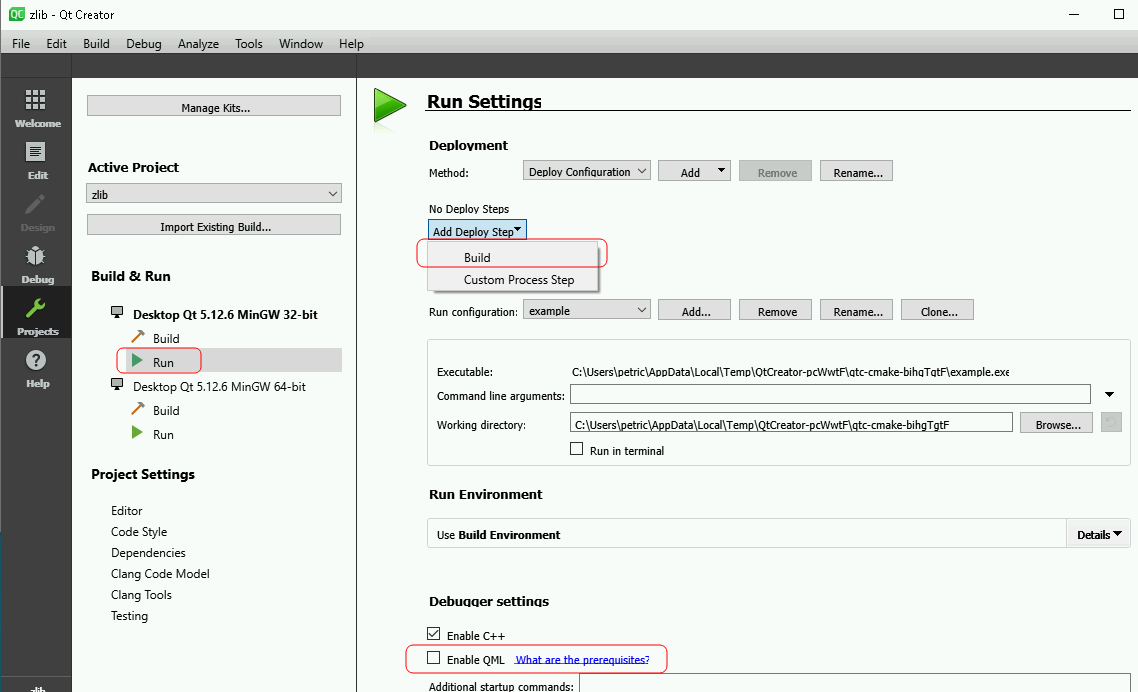
This will be added: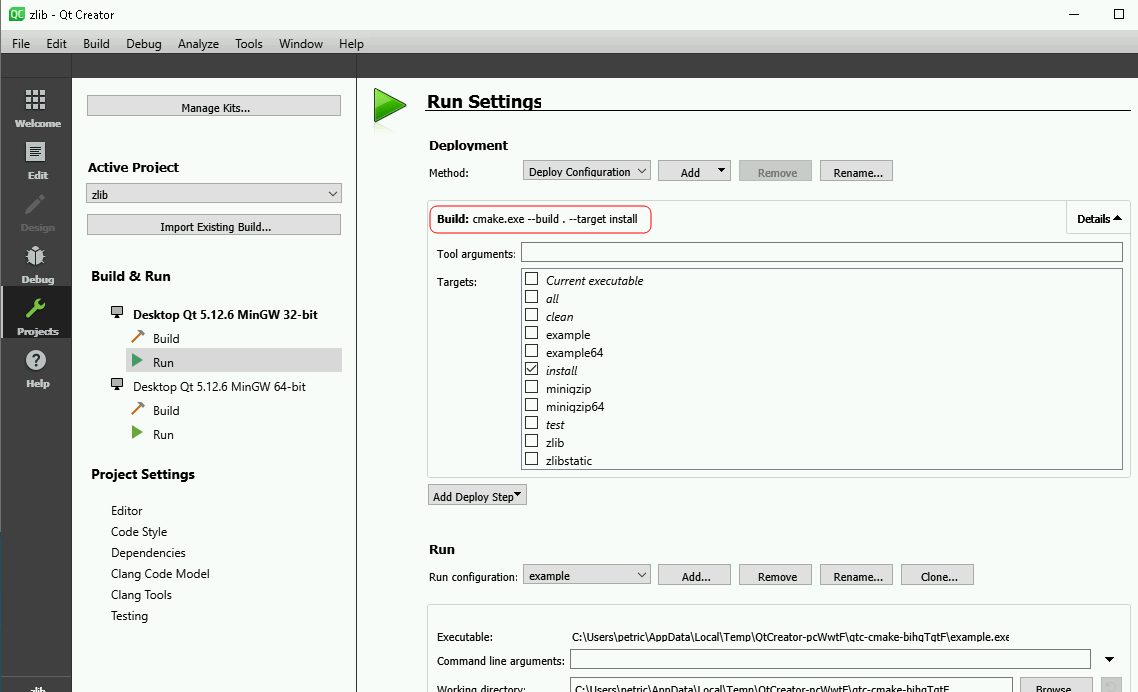
Enable AMD64 switch and adjust install paths of the 64-bit settings to C:\Qt\Tools\zlib64... : Verify that the variabled INSTALL_xxx are also adjusted. Select "Apply Configuration Changes" when done.
Add the deployment step to the run configuration: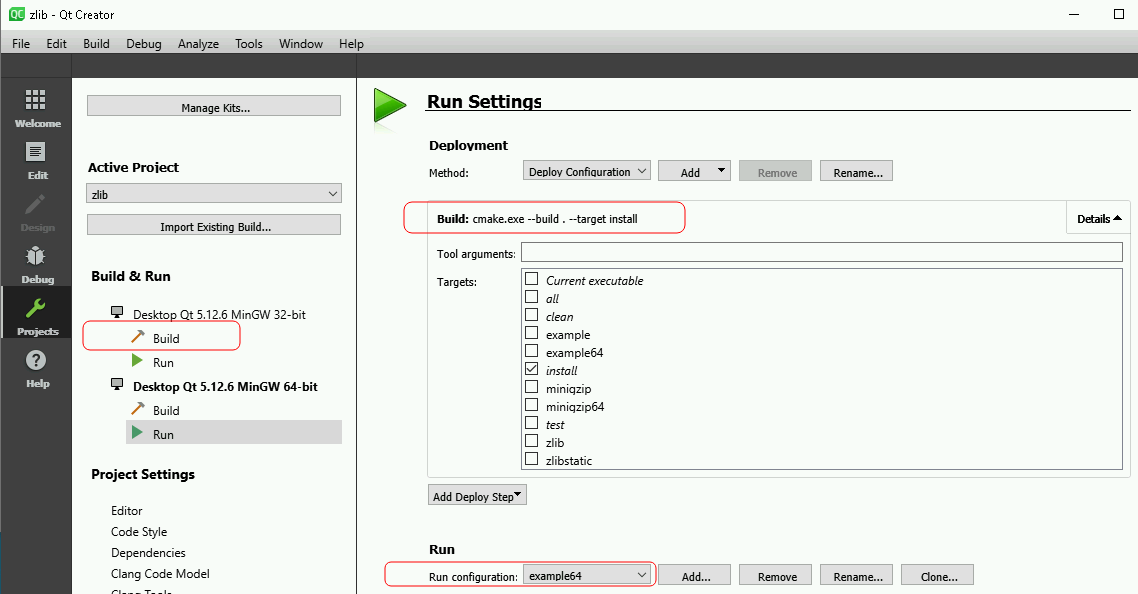
At the left navigation bar select "the run configuration for 64-bit (should be already selected):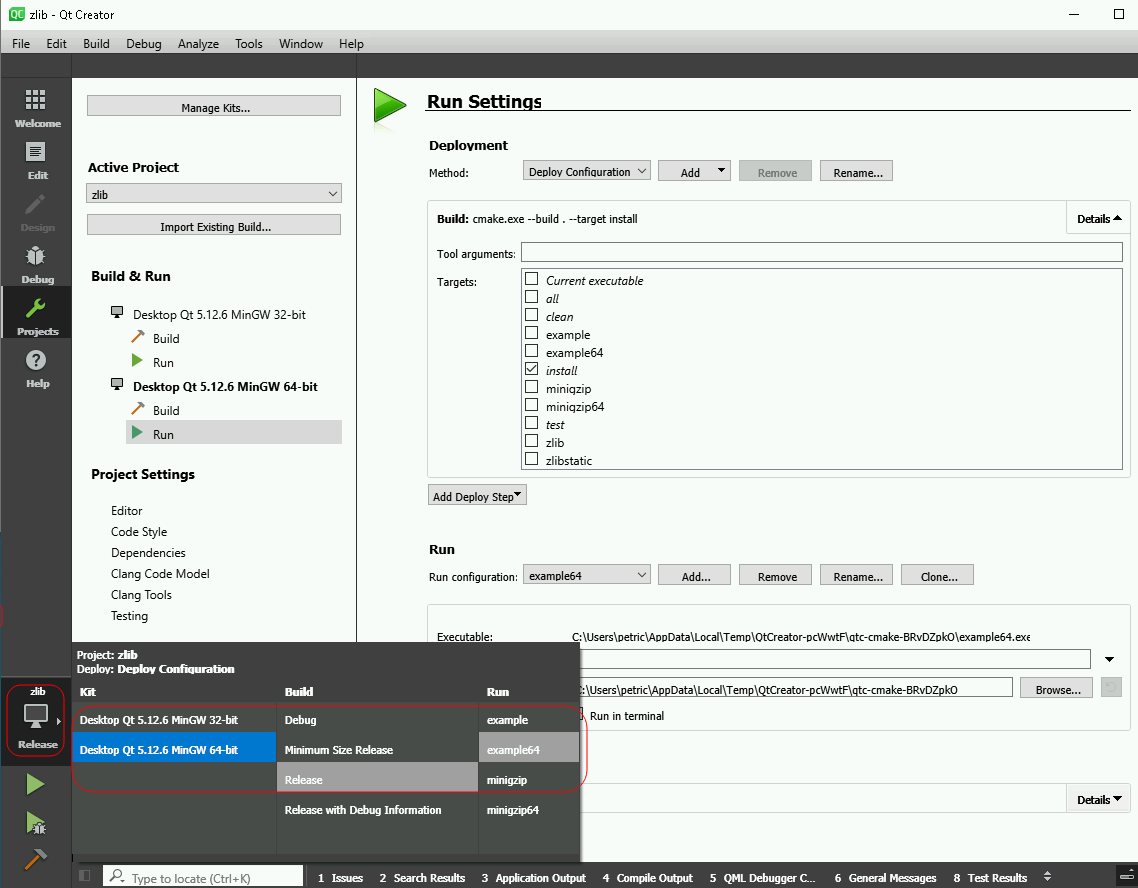
Run the project (green arrow/triangle at the left navigation bar). This should deploy the 64-bit zlib to C:\Qt\Tools\zlib64.
At the left navigation bar select "the run configuration for 32-bit: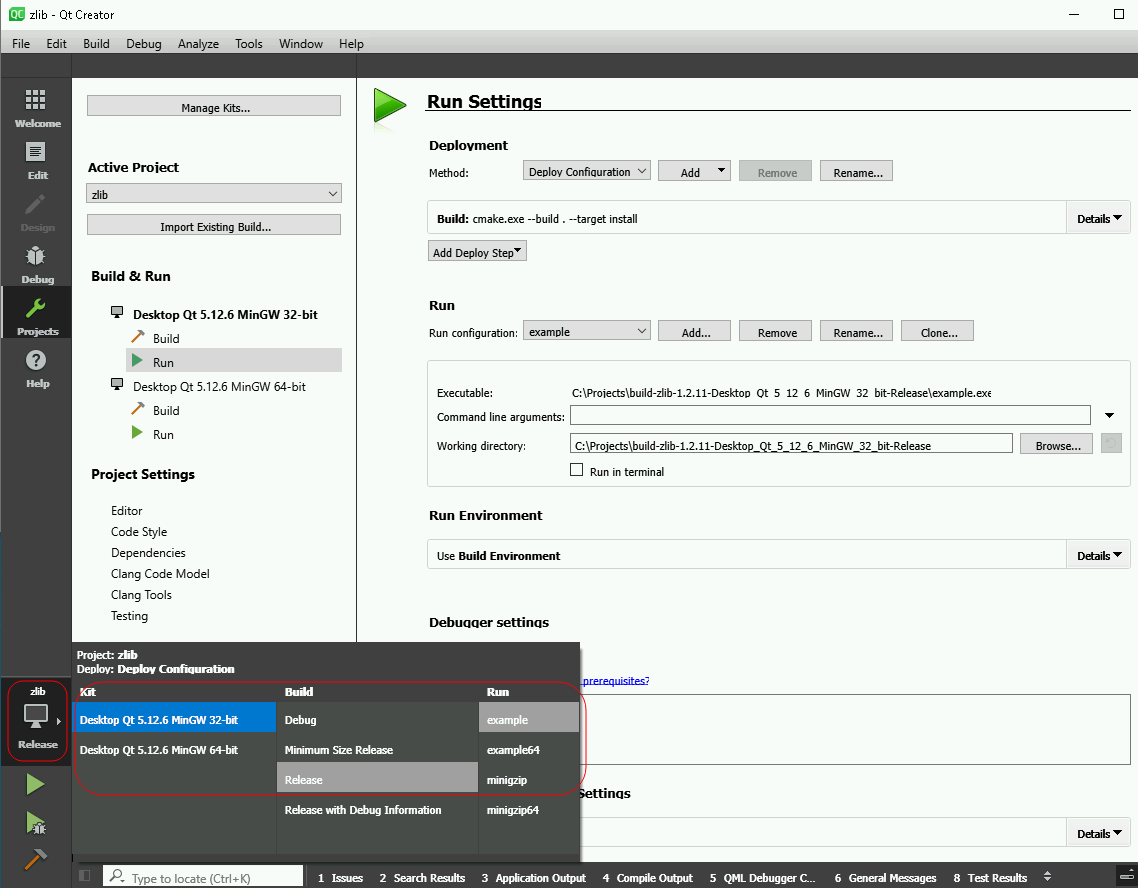
Run the project (green arrow/triangle at the left navigation bar). This should deploy the 64-bit zlib to C:\Qt\Tools\zlib64.
zlib build and deployment is finished now.
Create a session for libxlsxwriter (Menu: File -> Sessions -> Manage ...) and open it
Open C:\Projects\libxlsxwriter-RELEASE_0.9.3\CMakeLists.txt (Menu: File -> Open File or Project): Select both compilers (MinGW 32-bit and 64-bit) and press "Configure Project"
At the left navigation bar select "Projects" and select "Desktop Qt ... MinGW 32-bit -> Build"
Change "Edit build configuration to "Release". Add Directory to zlib root (32-bit version): Select "Apply Configuration Changes"
Adjust options and deployment destination for the 32-bit version of the library: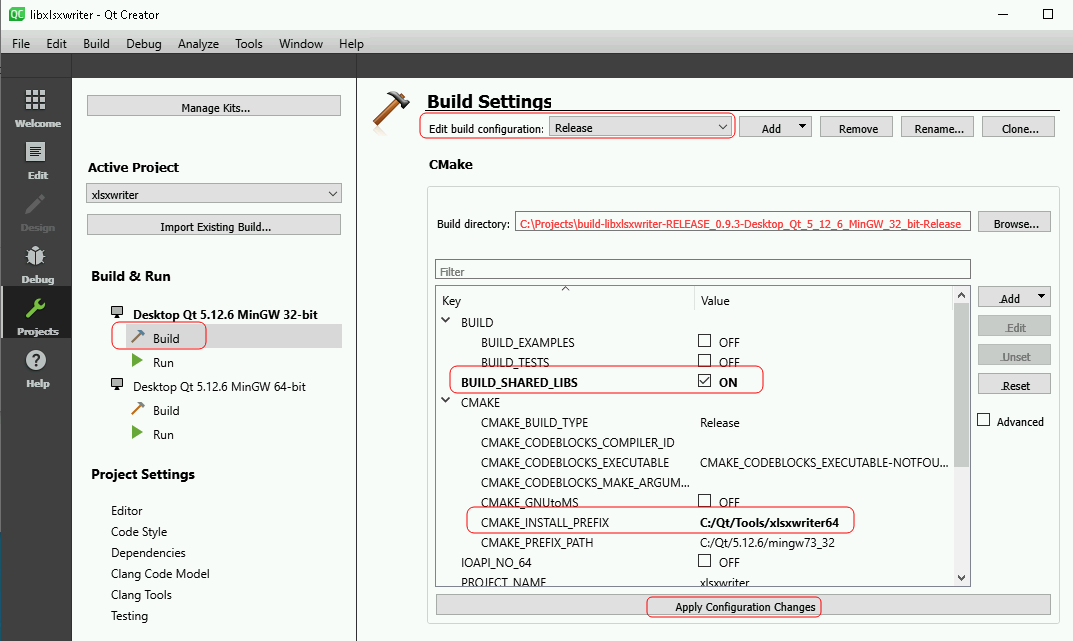
Select "Apply Configuration Changes"
If the path referred in Issue #269 is applied the option USE_DOUBLE_FUNCTION is also listed. If you are on a none US locale this should be enabled also.
Configure Run settings and add deployment step for 32-bit like done for zlib above
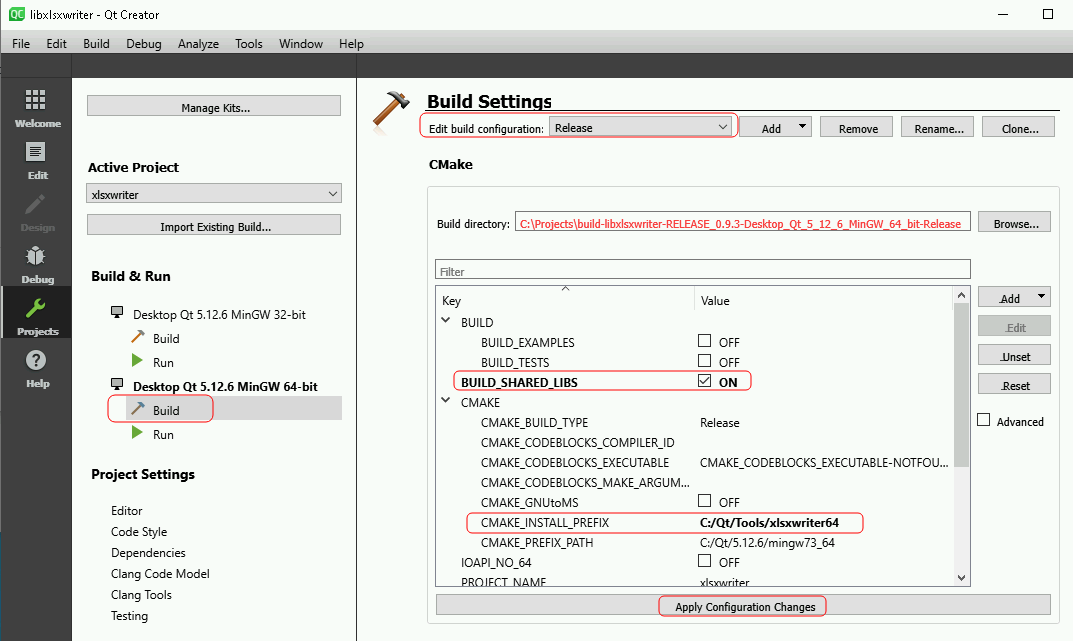
At the left navigation bar select "Projects" and select "Desktop Qt ... MinGW 64-bit -> Build"
Change "Edit build configuration to "Release". Add Directory to zlib root (64-bit version): Select "Apply Configuration Changes"
Adjust options and deployment destination for the 64-bit version of the library: Select "Apply Configuration Changes"
If the path referred in Issue #269 is applied the option USE_DOUBLE_FUNCTION is also listed. If you are on a none US locale this should be enabled also.
Configure Run settings and add deployment step for 64-bit like done for zlib above
select the 32-bit run configuration like done for zlib above.
Run the project (green arrow/triangle at the left navigation bar). This should deploy the 32-bit libxlsxwriter to C:\Qt\Tools\xlsxwriter32. A dialog pops up asking for run parameters. cancel it.
select the 64-bit run configuration like done for zlib above.
Run the project (green arrow/triangle at the left navigation bar). This should deploy the 64-bit libxlsxwriter to C:\Qt\Tools\xlsxwriter64. A dialog pops up asking for run parameters. cancel it.
libxlsxwriter build and deployment is finished now.
zlib is now deployed to C:\Qt\Tools\zlib32 and C:\Qt\Tools\zlib64
libxlsxwriter is now deployed to C:\Qt\Tools\xlsxwriter32 and C:\Qt\Tools\xlsxwriter64
Use ...32 for 32-bit applications and ...64 for 64-bit applications.
@jmcnamara commented on GitHub (Jul 30, 2020):
I've added a link to your QT guide from the libxlsxwriter docs: https://libxlsxwriter.github.io/getting_started.html#gsg_qt