[GH-ISSUE #155] Display modifier key(s) with mouse actions #128

Open
opened 2026-05-05 04:58:20 -06:00 by gitea-mirror · 5 comments
Owner

Originally created by @toootone on GitHub (Nov 28, 2019).
Original GitHub issue: https://github.com/keycastr/keycastr/issues/155

I use an option key (⌥) with mouse drag to copy a clip in Adobe Premiere. I would like to show the option key press on the screen. Currently it doesn't show unless I press a regular key with the modifier.

Originally created by @toootone on GitHub (Nov 28, 2019). Original GitHub issue: https://github.com/keycastr/keycastr/issues/155 I use an option key (⌥) with mouse drag to copy a clip in Adobe Premiere. I would like to show the option key press on the screen. Currently it doesn't show unless I press a regular key with the modifier.
gitea-mirror added the
enhancement
label 2026-05-05 04:58:20 -06:00
Author
Owner

@akitchen commented on GitHub (Nov 30, 2019):

I like this idea, it would be very useful for screencasts.

I'm curious to hear more about what you would expect to see -- any keypress of option, ctrl, etc. or only when accompanied by a mouse click? And how should we represent the mouse click? I don't know of a standard glyph for that.

<!-- gh-comment-id:560005099 --> @akitchen commented on GitHub (Nov 30, 2019): I like this idea, it would be very useful for screencasts. I'm curious to hear more about what you would expect to see -- any keypress of option, ctrl, etc. or only when accompanied by a mouse click? And how should we represent the mouse click? I don't know of a standard glyph for that.
Author
Owner

@shanereddy commented on GitHub (Apr 1, 2020):

I am trying to shift + mouse click to multi-select things, this would be really useful for my screencasts.
Thank you for this great product :).

<!-- gh-comment-id:607328597 --> @shanereddy commented on GitHub (Apr 1, 2020): I am trying to shift + mouse click to multi-select things, this would be really useful for my screencasts. Thank you for this great product :).
Author
Owner

@stillsilly commented on GitHub (Jun 3, 2020):

The top left arrow can represent mouse,but this icon is used by 'fn + left arrow'.
how about using a gif picture to show mouse click,
or change the size of the arrow, from big to small, represent mouse clicked

<!-- gh-comment-id:638335021 --> @stillsilly commented on GitHub (Jun 3, 2020): The top left arrow can represent mouse,but this icon is used by 'fn + left arrow'. how about using a gif picture to show mouse click, or change the size of the arrow, from big to small, represent mouse clicked
Author
Owner

@porg commented on GitHub (May 20, 2022):

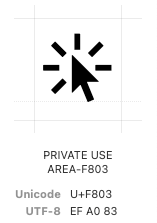
Glyphs to represent a mouse click

Unicode

 (Unicode U+F803)
Mouse Cursor in Unicode

Apple SF Symbols

Searching in SF Symbols.app (download) for "cursor" yields:

Mouse Cursor in Apple SF Pro

Fontawesome Glyphs

https://fontawesome.com/icons/arrow-pointer
https://fontawesome.com/icons/computer-mouse

<!-- gh-comment-id:1132600398 --> @porg commented on GitHub (May 20, 2022): ### Glyphs to represent a mouse click ## Unicode  (Unicode `U+F803`) ![Mouse Cursor in Unicode](https://user-images.githubusercontent.com/737143/169481811-7cf45ae5-4be2-4204-afcb-4a1ea1c6793b.png) ## Apple SF Symbols Searching in `SF Symbols.app` ([download](https://developer.apple.com/sf-symbols/)) for "cursor" yields: ![Mouse Cursor in Apple SF Pro](https://user-images.githubusercontent.com/737143/169481763-f0fcc8d5-7569-4226-aea1-fa533f43c164.png) ## Fontawesome Glyphs https://fontawesome.com/icons/arrow-pointer https://fontawesome.com/icons/computer-mouse
Author
Owner

@porg commented on GitHub (May 20, 2022):

Principal styles for screencasts with mouseclick(s) plus modifier-key

  1. All visualized at the mouse cursor, also expressed in #33
  • Many screencasting apps have a capability to visualize these mouse events near or around the cursor: click-n-hold, left-click, right-click, double-click, release
  • The modifier key(s) should display relative to the cursor position (default: right of the cursor, because the mouse cursor is titled towards the left on Mac/Windows/Linux)
  • These modifier keys should only display when pressed (no delay), as timing in combination with the click events is important to understand.
  1. Modifier keys always visible at fixed screen position, small or large, different visualization when inactive or pressed
  2. Normal visualizer with mouse-events as glyphs
  • Big con: when gazing at the cursor as the "place of action" you then have to look at another position for the modifier keys, not the optimal perception
  • Only pro: Normal visualizer has a delay, so the key/mouse events can be seen a bit in restrospect, possible use case: showing sequences/combos.
  • Glyphs are provided in the post above.

Giving Svelte some more customization options will enable it for use cases 1 + 2

New options

  • Option to show/hide the upper part (non-modifier-keys)
  • Option to resize:
    • Upper part's height can be changed by dragging the upper border up/down
    • Whole widget's size can be resized proportionally by dragging at any of the 4 corners
    • This influences the font size of upper part too
      • As it is only 1 row, the available height is the font size
      • Does not make sense to wrap onto multiline here — This is for key combos, free text shall rather be observed in the text areas where it is typed into.
  • Freely positionable, also above the menu, it already is!
  • Customizeable color+transparency for: background-inactive, background-active, key-inactive, key-active
  • Option: Display relative to mouse cursor: X: +10 px Y: 0 px
    • It interprets this cleverly:
    • X = Positive pixel values: Svelte's left margin has this distance to the right margin of the cursor
    • X = Negative pixel values: Svelte's right margin has this distance to the left margin of the cursor
    • Y = Positive pixel values: Svelte s horizontal center is above the cursor's horizontal center
    • Y = Negative pixel values: Svelte s horizontal center is below the cursor's horizontal center
    • Important: While you tweak the values in the preferences it already updates so that you see the outcome relative to the cursor

With these measures you can

  • Position it anywhere you want and ensure proper contrast depending on your type of contents
  • Position it over the main menu and de facto achieve #221
  • Show modifier-keys only when pressed (if setting background-inactive alpha-channel to 0%)
  • Relative positioning + hiding normal keys 👉 achieve type N°1 as expressed in #33
<!-- gh-comment-id:1132653281 --> @porg commented on GitHub (May 20, 2022): ## Principal styles for screencasts with mouseclick(s) plus modifier-key 1. All visualized at the mouse cursor, also expressed in #33 - Many screencasting apps have a capability to visualize these mouse events near or around the cursor: click-n-hold, left-click, right-click, double-click, release - The modifier key(s) should display relative to the cursor position (default: right of the cursor, because the mouse cursor is titled towards the left on Mac/Windows/Linux) - These modifier keys should only display when pressed (no delay), as timing in combination with the click events is important to understand. 2. Modifier keys always visible at fixed screen position, small or large, different visualization when inactive or pressed 3. Normal visualizer with mouse-events as glyphs - Big con: when gazing at the cursor as the "place of action" you then have to look at another position for the modifier keys, not the optimal perception - Only pro: Normal visualizer has a delay, so the key/mouse events can be seen a bit in restrospect, possible use case: showing sequences/combos. - Glyphs are provided in the post above. ## Giving Svelte some more customization options will enable it for use cases 1 + 2 ### New options - Option to show/hide the upper part (non-modifier-keys) - Option to resize: - Upper part's height can be changed by dragging the upper border up/down - Whole widget's size can be resized proportionally by dragging at any of the 4 corners - This influences the font size of upper part too - As it is only 1 row, the available height is the font size - Does not make sense to wrap onto multiline here — This is for key combos, free text shall rather be observed in the text areas where it is typed into. - Freely positionable, also above the menu, it already is! - Customizeable color+transparency for: background-inactive, background-active, key-inactive, key-active - Option: Display relative to mouse cursor: X: +10 px Y: 0 px - It interprets this cleverly: - X = Positive pixel values: Svelte's left margin has this distance to the right margin of the cursor - X = Negative pixel values: Svelte's right margin has this distance to the left margin of the cursor - Y = Positive pixel values: Svelte s horizontal center is above the cursor's horizontal center - Y = Negative pixel values: Svelte s horizontal center is below the cursor's horizontal center - Important: While you tweak the values in the preferences it already updates so that you see the outcome relative to the cursor ### With these measures you can - Position it anywhere you want and ensure proper contrast depending on your type of contents - Position it over the main menu and de facto achieve #221 - Show modifier-keys only when pressed (if setting background-inactive alpha-channel to 0%) - Relative positioning + hiding normal keys 👉 achieve type N°1 as expressed in #33
Sign in to join this conversation.
No milestone
No project
No assignees
1 participant
Notifications
Due date
The due date is invalid or out of range. Please use the format "yyyy-mm-dd".

No due date set.

Dependencies

No dependencies set.

Reference: github-starred/keycastr#128
No description provided.